Prepare the workbook
Keep the original Excel intact. Include the Balance Sheet, P&L, notes and available workings; retain source formulas and linked values wherever possible. CY and PY can be in a single workbook or supplied as separate files. Password-protected or unusual layouts may need preparation or support.
Convert and review
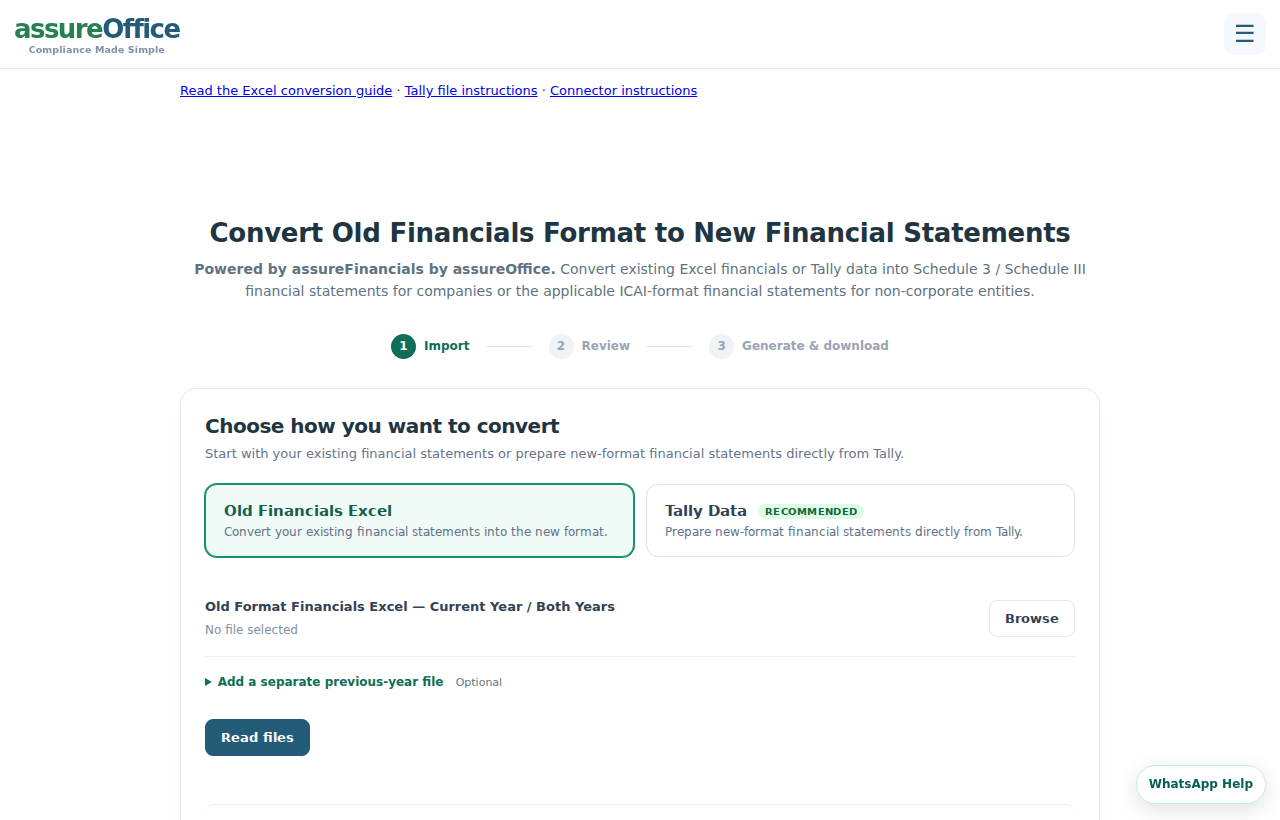
- Open Convert Old Format to New and select Old Financials Excel.
- Upload the current-year/both-years workbook. Add the separate PY file only when comparatives are in another workbook.
- Select Read files. Review the detected financial-statement sheets and select the relevant statements, notes and workings.
- Confirm entity type, name, address and financial-year dates. Check recognised capital, PPE, stock and accounting data.
- Review auditor/signing details and output controls. Select Generate Financials, then inspect PDF/Excel.
- Use Save to assureFinancials or Save & Edit in assureFinancials to retain the conversion in your account. If saving into an existing client, review the selected year and replacement preview.
What requires your review
Review points
- Sheet selection matters when a workbook contains multiple years, drafts or working sheets. Select the relevant version.
- Check note references, units, share counts, disclosures and totals against the original workbook. Recognition can be incomplete for unusual formats.
- Do not overwrite an existing year until you have reviewed the import preview and made a backup. Financials imports into a saved client use Import Centre → Financial Statements.
Continue with a related guide
- Prepare your first financial statements
- Connect Tally directly
- Import Tally files without a connector
- Import CY/PY and refresh an existing year
- Review ledger grouping and opposite balances
- Edit notes, capital, PPE and closing stock
- Review alerts, signing details and PDF/Excel downloads
- Use previous-year ITR and supporting-data imports